AI Image Expander & Outpainting
Expand your image to a chosen aspect ratio and let AI naturally fill in the new areas. Results vary by source image.
Choose an image
Drag & drop your image here, or click to browse
Preview the result
Review the returned image and download it if it meets your needs.
How it works
Upload an image, run the selected tool, then preview and download the returned result.
Upload an image
Choose or drop a supported image.
Process image
The service applies the selected tool to the uploaded image.
Preview the result
Review the returned image and download it if it meets your needs.
How image expansion works
Sign in, upload an image, choose a target aspect ratio, and the AI extends the scene outward.
Choose a target ratio
Pick 1:1, 4:3, 3:4, 16:9 or 9:16 to fit your layout.
AI outpainting
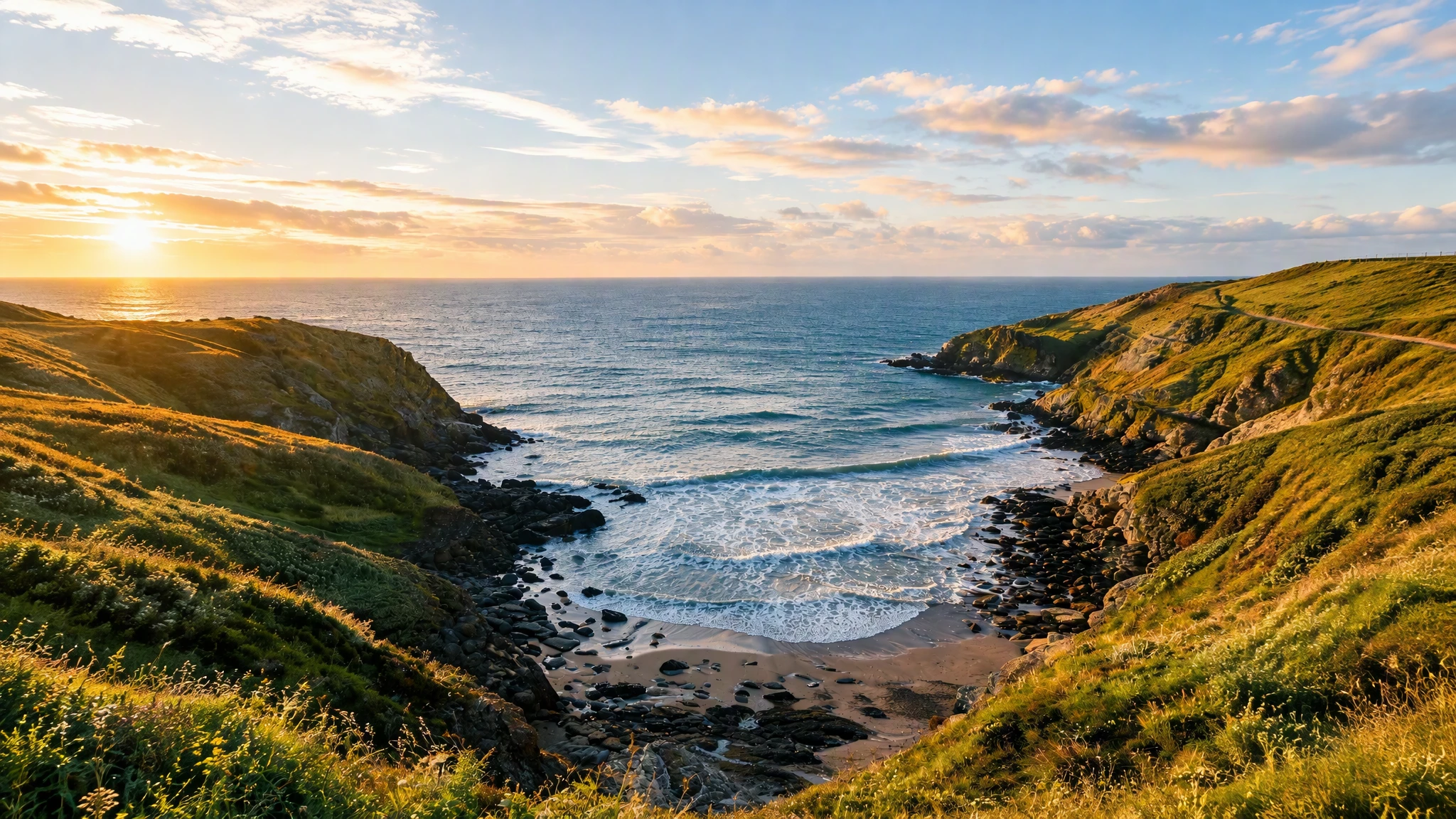
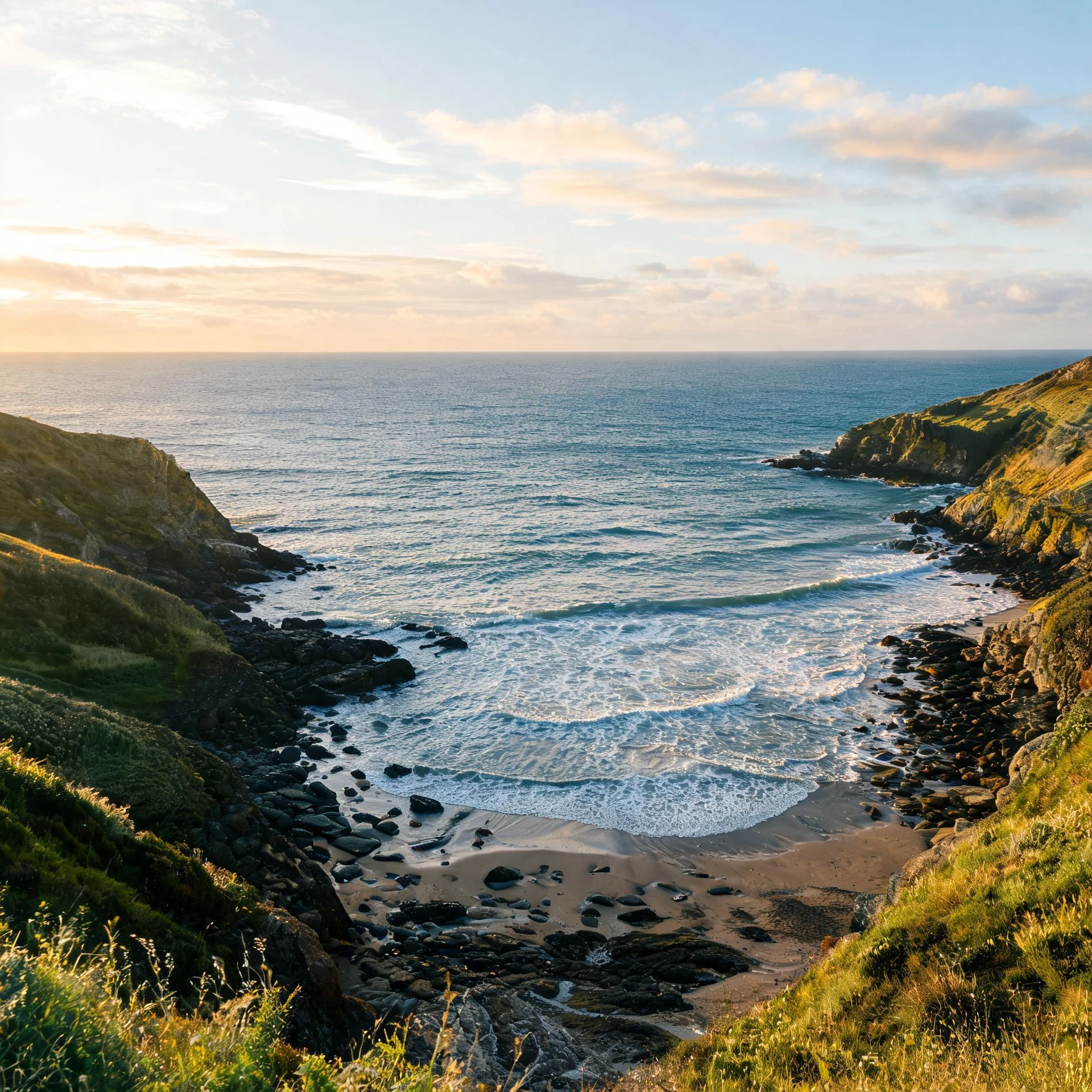
The AI generates new content that extends the image beyond its edges.
Seamless extension
New areas blend with the original scene and lighting.
Preview and download
Compare the original and the expanded result, then download.
Use the AI tools in your browser
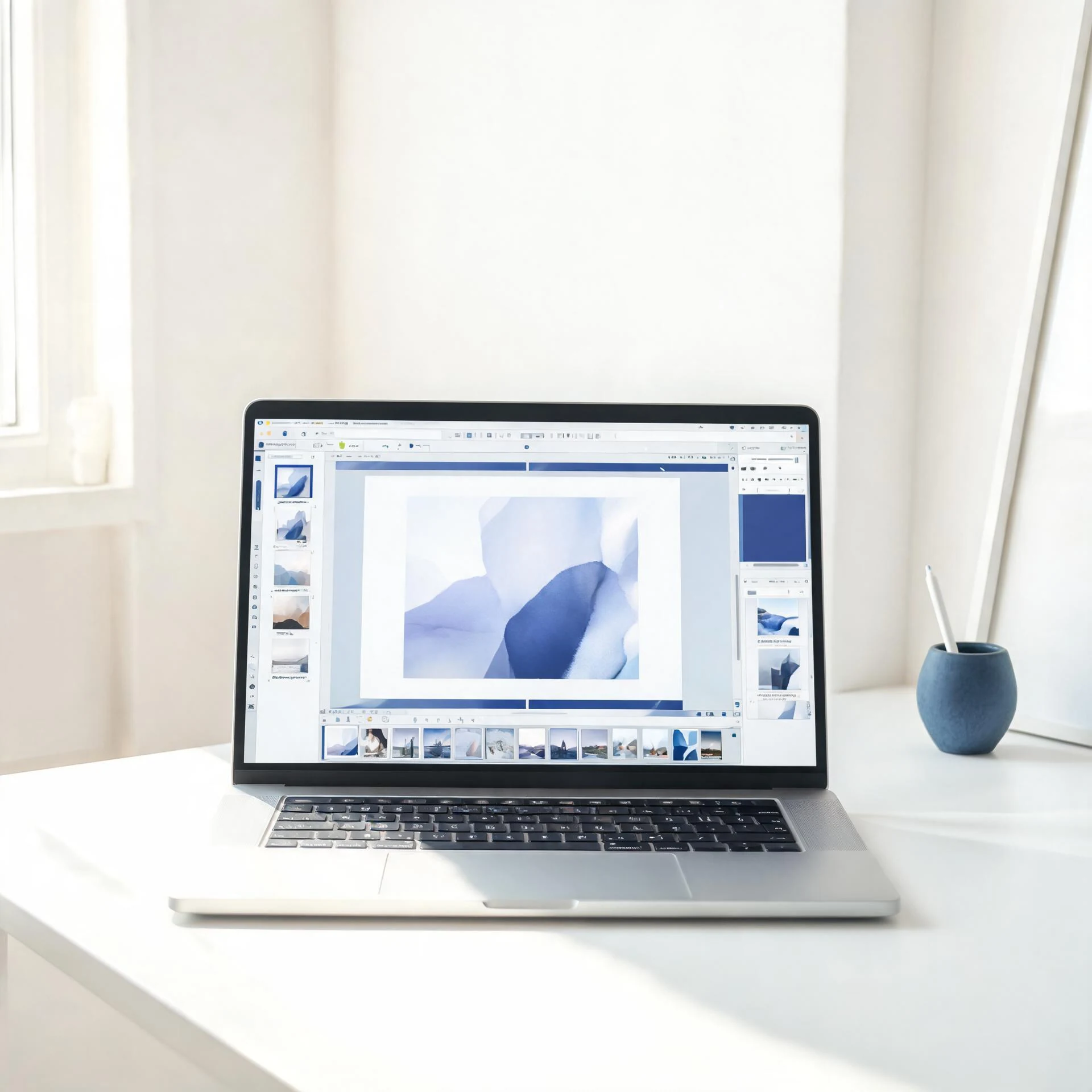
Open a tool in the browser, upload an image, and the editor shows the result for preview and download.
Choose an available AI tool
Upload an image to try this tool.
Expand an image with Pixcutly's AI image expander. Sign in, upload a photo, choose a target aspect ratio, and the AI extends the canvas beyond the original frame.
Features
AI outpainting that extends a photo's edges with content that matches the original scene. Choose a target aspect ratio (1:1, 4:3, 3:4, 16:9, 9:16), then download the expanded result.
How to use
- 1
Sign in and upload the image.
- 2
Choose a target aspect ratio (1:1, 4:3, 3:4, 16:9, 9:16).
- 3
Start processing — the AI fills in the new area.
- 4
Download the expanded image.
FAQ
What does it mean to expand an image?
Expanding (outpainting) extends the image beyond its original edges with AI-generated content that matches the scene.
Can I expand a photo to a different aspect ratio?
Yes — choose a target ratio like 1:1, 4:3, 16:9, or 9:16, and the AI fills the new area.
Do I need to sign in?
Yes. Sign in before starting an AI processing task.